GNOME Settings
The GNOME Settings page provides a convenient way to adjust your Linux desktop environment without digging through multiple GNOME settings panels or using the gsettings command line. All changes take effect immediately — you can see the result as soon as you adjust a value.
This page only appears when Nexis detects that gsettings is available, which means you are running a GNOME-based desktop environment. On macOS, this page is hidden entirely since macOS uses its own System Settings application.
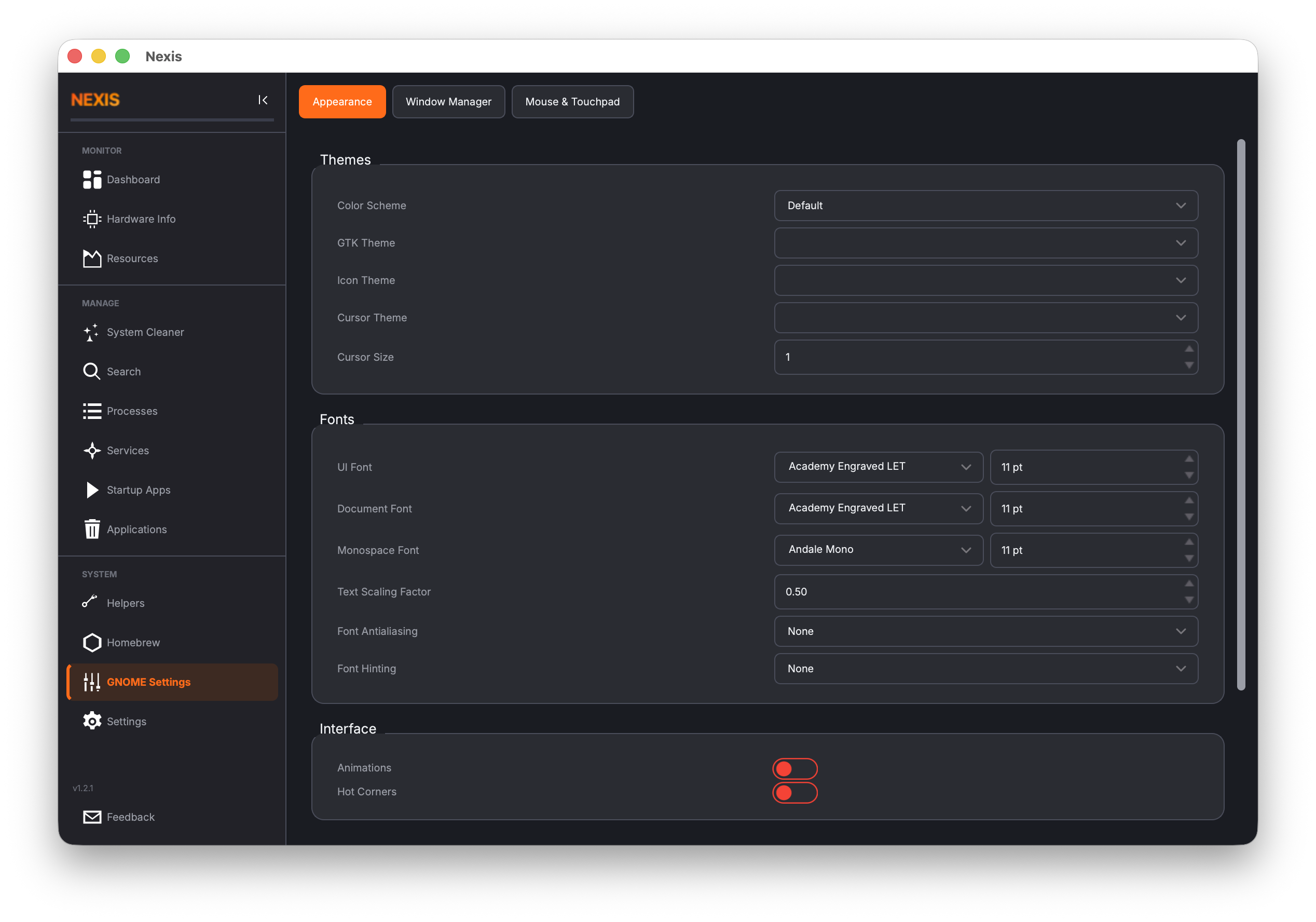
Appearance Tab
The Appearance tab controls the visual theme of your GNOME desktop.
GTK Theme
Select your preferred GTK theme from the dropdown. Nexis scans your installed themes from /usr/share/themes/ and lists all available options. Changing this affects the look of window decorations, buttons, menus, and other GTK-based interface elements across your desktop.
Icon Theme
Choose an icon theme from the dropdown. Available themes are scanned from /usr/share/icons/. The icon theme affects folder icons, application launcher icons, and system icons throughout the desktop.
Cursor Theme
Select a cursor theme. Like the other theme options, this is populated from your installed themes and takes effect immediately.
Font Rendering
Adjust how fonts are rendered on your desktop. This controls anti-aliasing and hinting, which affect the crispness and smoothness of text across all GNOME applications.
Window Manager Tab
The Window Manager tab controls how GNOME handles window behavior and titlebar layout.
Titlebar Buttons
Configure which buttons appear on your window titlebars and where they are positioned. You can choose to show or hide the minimize and maximize buttons, and arrange them on the left or right side of the titlebar.
Titlebar Font
Pick the font used in window titlebars. Nexis provides a font selector that shows available fonts with a live preview, so you can see how each option looks before committing.
Focus Mode
Choose how windows receive focus:
- Click — A window gets focus when you click on it (the default).
- Sloppy — A window gets focus when the mouse enters it, but does not raise above other windows.
- Mouse — A window gets focus when the mouse enters it and loses focus when the mouse leaves.
Action Keys
Configure which modifier key is used for window actions like dragging and resizing. The default is usually the Super (Windows) key.
Mouse & Touchpad Tab
The Mouse & Touchpad tab lets you fine-tune pointer behavior.
Speed
Adjust the mouse and touchpad speed using the slider. Changes are slightly debounced (200ms) to prevent overwhelming the settings backend while you drag the slider.
Acceleration
Configure pointer acceleration, which controls how cursor speed scales with physical movement speed. Higher acceleration means the cursor moves faster when you move the mouse quickly, while moving slowly for precise positioning.
Natural Scrolling
Toggle natural (reverse) scrolling, where scrolling down moves the content up (the way it works on phones and tablets). This applies to both mouse and touchpad scrolling.
Tap-to-Click
Enable or disable tap-to-click on your touchpad. When enabled, a light tap on the touchpad registers as a click without needing to press the physical button.
Desktop Tab
The Desktop tab controls various GNOME Shell features.
Clock Format
Switch between 12-hour and 24-hour clock display in the top bar.
Show Weekday
Toggle whether the day of the week (e.g., “Mon”, “Tue”) appears next to the clock in the top bar.
Battery Percentage
Toggle whether the battery charge percentage is displayed in the top bar alongside the battery icon. This only has a visible effect on laptops.
Desktop Icons
Enable or disable icons on the desktop (files, folders, and mounted drives that appear directly on the desktop background).
Error Handling
If a setting fails to apply (for example, if a theme is corrupted or a gsettings schema is missing), Nexis displays an inline error message next to the affected control. This gives you immediate feedback without popping up a dialog.
Tip: Most GNOME themes and icon packs can be installed from your distribution’s package manager. After installing new themes, revisit this tab and they will appear in the dropdowns automatically.
What’s Next
Configure Nexis itself — language, color scheme, alerts, scheduled cleaning, and more — on the Settings page.