Services
The Services page gives you control over the background processes (daemons) that keep your system running. You can see which services are active, start or stop them on demand, and configure whether they launch automatically at boot — all without memorizing terminal commands.
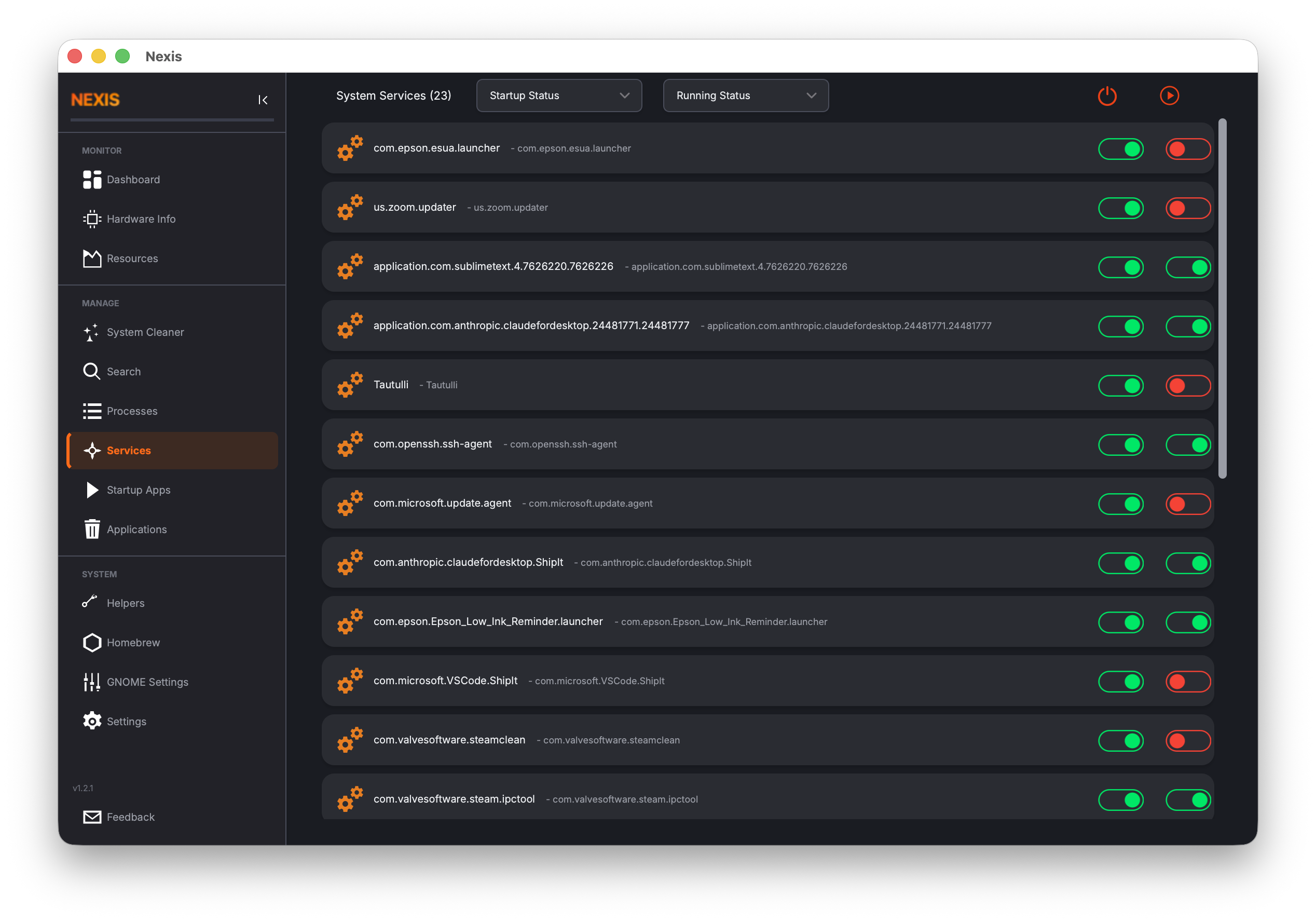
The Service List
Services are displayed in a scrollable list. Each entry shows:
- The service name
- A color-coded status indicator that tells you at a glance whether the service is running
The color coding is straightforward:
| Color | Meaning |
|---|---|
| Green | The service is currently running |
| Red / Gray | The service is stopped |
Filtering Services
The filter bar at the top lets you narrow down the list in two ways:
By Run State
- Running — Show only services that are currently active
- Not Running — Show only services that are currently stopped
By Startup Behavior
- Enabled — Show only services that are set to start automatically at boot
- Disabled — Show only services that must be started manually
Combining these filters is useful for common tasks. For example, filtering to “Not Running + Enabled” reveals services that should be running but are not — a quick way to spot problems.
Starting and Stopping Services
Select a service from the list, then use the Start or Stop button to change its run state.
- Start launches the service immediately.
- Stop shuts the service down.
Tip: Starting or stopping a service requires administrator privileges. Nexis will prompt you for your password when needed.
Enabling and Disabling Auto-Start
Beyond starting and stopping a service right now, you can control whether it launches automatically on boot:
- Enable — The service will start automatically when the system boots.
- Disable — The service will not start at boot (you would need to start it manually).
This is separate from the current run state. A service can be running right now but disabled from auto-starting, or stopped right now but enabled to start on the next boot.
Platform Differences
Nexis talks to different service managers depending on your operating system.
Linux: Services are managed through
systemctl, the control interface for systemd. This covers the vast majority of modern Linux distributions. Nexis can list, start, stop, enable, and disable systemd units.
macOS: Services are managed through
launchctl, the interface for launchd. Nexis lists launchd services and provides start/stop functionality.
Common Use Cases
Troubleshooting a Stuck Service
If an application is misbehaving (for example, a web server is not responding), find its service in the list, stop it, and start it again. This is the graphical equivalent of sudo systemctl restart <service>.
Reducing Boot Time
Filter to “Enabled” services and review the list. If you see services you do not need (such as Bluetooth on a desktop with no Bluetooth adapter), disable them to shave a few seconds off your boot time.
Checking What Is Running
Filter to “Running” to get a snapshot of every active daemon. This is helpful when investigating unexpected resource usage — if you spot a service you do not recognize, you can stop it and see if performance improves.
Tip: Be cautious when stopping system-critical services like networking, display managers, or init-related daemons. If you are unsure what a service does, look up its name before making changes.
What’s Next
Learn how to monitor and manage individual processes in the Processes guide.