Search
The Search page is a powerful file finder built into Nexis. Instead of dropping to a terminal and wrestling with find commands, you can set up your search criteria visually and browse results in a sortable table. It supports filtering by name, file type, size range, date range, and even searching as root for files in protected directories.
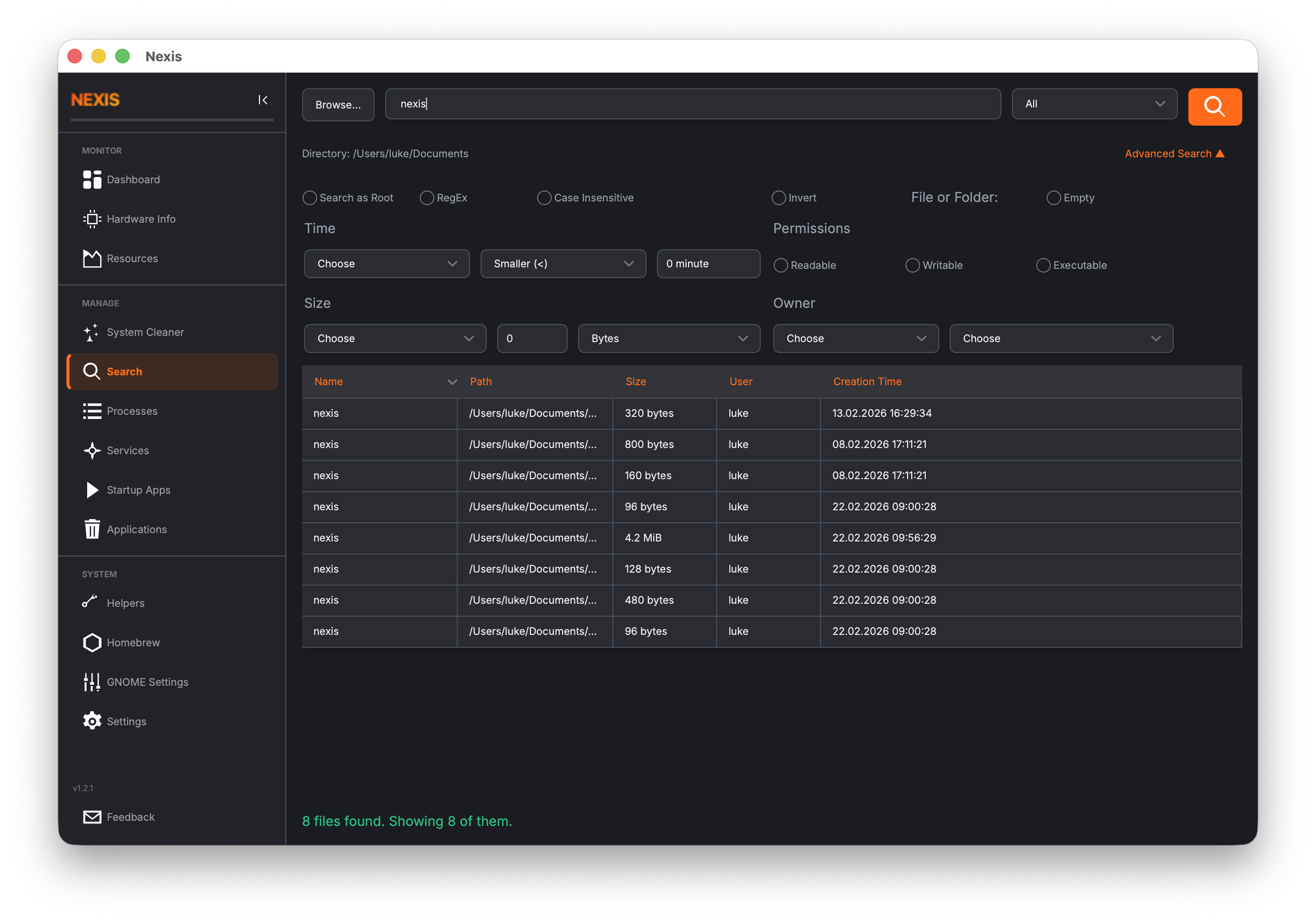
Setting Up a Search
Before you hit the search button, configure your filters to narrow down the results.
Directory Path
Choose where to start searching. Click the Browse button to open a directory picker, or type a path directly into the field. The search will cover the selected directory and all of its subdirectories.
Tip: Searching from
/(the root directory) is possible but can be slow on large filesystems. Start with a specific directory like/homeor/varwhen you can.
File Name Pattern
Enter a pattern to match against file names. You can use wildcards — for example, *.log finds all log files, and report_2025* matches any file whose name starts with “report_2025”.
File Type / Extension
Filter results to specific file types or extensions. This is useful when you know the kind of file you are looking for but not its exact name.
Size Range
Set a minimum and/or maximum file size to find files within a particular range. For example, you might search for files larger than 100 MB to identify what is consuming your disk space.
Date Range
Filter by the last modified date. This helps you find files that were recently changed or files that have not been touched in a long time.
Search as Root
Enable this option to run the search with elevated privileges. This lets Nexis look inside directories that your regular user account cannot access, such as /root, system config directories, or other users’ home folders.
Linux: Root search uses
pkexecorsudoto elevate privileges. You will be prompted for your password.
macOS: Root search uses an AppleScript administrator prompt.
Reading the Results
Search results appear in a table with sortable columns:
| Column | Description |
|---|---|
| Path | Full file path |
| Size | File size in human-readable units |
| Modified | Last modification date |
Click any column header to sort the results by that field. Click again to reverse the sort order. This makes it easy to find the largest files, the most recently modified files, or to browse alphabetically.
Working with Results
Opening a File
Double-click any result to open it in your system’s default application. A .pdf opens in your PDF reader, a .txt opens in your text editor, and so on.
Right-Click Context Menu
Right-click a result to see additional options:
- Open — Open the file in its default application (same as double-click)
- Open Location — Open the containing folder in your file manager
- Copy Path — Copy the full file path to your clipboard
Tip: “Copy Path” is handy when you need to paste a path into a terminal command or another application.
Common Use Cases
Finding Large Files
Leave the name pattern empty, set a minimum size of 500 MB, and search your home directory. Sort results by size (largest first) to quickly identify the biggest space consumers.
Locating Old Downloads
Set the directory to your Downloads folder, leave the name pattern empty, and set the date range to “older than 6 months.” The results show forgotten downloads that may be safe to delete.
Searching System Directories
Enable Search as Root to look inside /etc, /var, or /root. This is useful for finding configuration files or logs that belong to system services.
What’s Next
Learn how to manage system services and daemons in the Services guide.