System Cleaner
The System Cleaner helps you reclaim disk space by finding and removing files you no longer need — old package caches, crash dumps, application logs, and more. You can run a scan manually, pick exactly which files to delete, and even set up automated schedules so cleaning happens in the background without you thinking about it.
Scan Categories
Nexis scans eight categories of cleanable files. Each category targets a different type of system clutter:
| Category | What It Finds |
|---|---|
| Package Cache | Downloaded package files from your package manager (APT, DNF, Pacman, or Homebrew) |
| Crash Reports | System and application crash dumps |
| Application Logs | Log files in /var/log and user-level log directories |
| Application Caches | Cached data from your installed apps |
| Trash | Files sitting in your trash bin that have not been permanently deleted |
| Dev Tool Caches | Caches from development tools like npm, cargo, gradle, pip, and Electron apps |
| Broken Symlinks | Dead symbolic links that point to files or directories that no longer exist |
| Browser Privacy | Browser caches, session data, and recent file history from Chrome, Firefox, Safari, Edge, Brave, and other browsers |
Linux: Application caches are scanned from
~/.cache. Package caches depend on your distro’s package manager. Browser privacy artifacts are scanned from~/.config/and~/.cache/for Chromium-based browsers,~/.mozilla/firefox/for Firefox, and~/.local/share/recently-used.xbelfor recent file history.
macOS: Application caches are scanned from
~/Library/Caches. Package caches come from Homebrew’s download directory. Browser privacy artifacts are scanned from~/Library/Caches/and~/Library/Application Support/for each browser, including Safari and the system’s recent file list.
Running a Scan
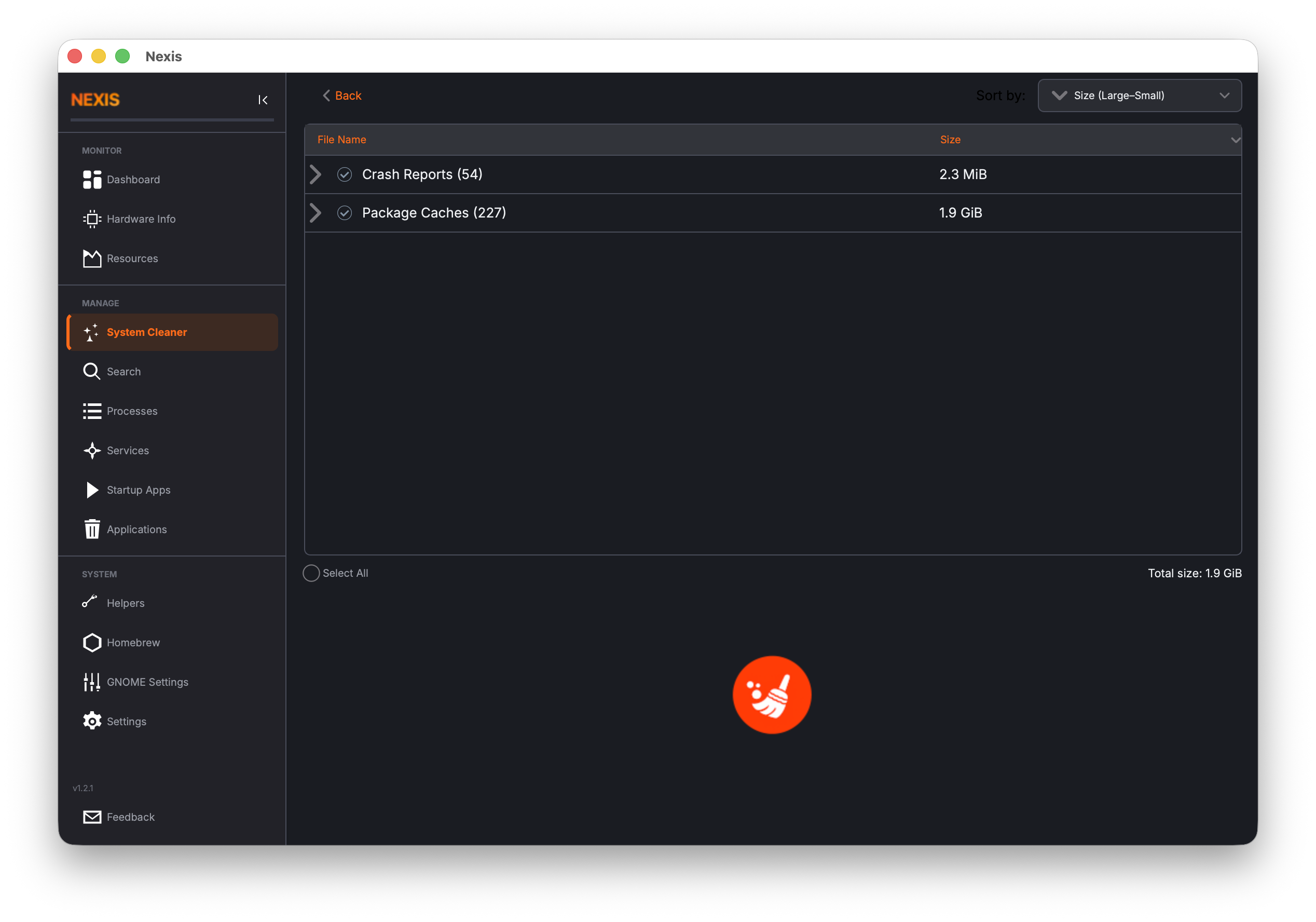
Click the Scan button to search all eight categories. Nexis displays a progress indicator while it works. When the scan completes, you see a hierarchical tree view of the results — categories at the top level, individual files nested underneath.
The total size of all discovered files is shown prominently so you can see at a glance how much space you could recover.
Reviewing Results
The results tree lets you drill into each category to see every file that was found. Each item shows its file path and size.
Selecting Files to Clean
- Check a category to select all files within it.
- Expand a category and check individual files if you only want to remove some of them.
- Uncheck anything you want to keep.
The total size updates as you change your selection, so you always know exactly how much space you are about to free.
Sorting
Use the sort options to organize results by:
- Name (A-Z or Z-A)
- Size (smallest first or largest first)
Sorting by size (largest first) is a great way to find the biggest offenders quickly.
Cleaning
Once you are happy with your selection, click Clean to delete the checked files. Nexis removes them permanently — they do not go back into the trash.
Tip: If you are unsure about a file, uncheck it and clean everything else first. You can always run another scan later to catch it.
Scheduled Cleaning
Instead of remembering to clean manually, you can set up automated schedules that run in the background.
Setting Up a Schedule
Open the schedule manager from the System Cleaner page (or from Settings > Scheduled Cleaning). For each schedule, you can configure:
- Frequency — Daily, every N days, weekly, or monthly
- Categories — Which of the eight scan categories to include
- Minimum file age — Only clean files older than a certain number of days
- Threshold alerts — Get a tray notification when cleanable files exceed a size threshold (e.g., alert me when there is more than 5 GB to clean)
The schedule indicator on the System Cleaner page shows when the next automated clean will run and when the last one completed.
Tip: Browser Privacy is unchecked by default in new schedules. Since browser cleaning can remove active session data, enable it only if you are comfortable clearing caches and session files on a schedule.
How Scheduling Works
Nexis uses your operating system’s native task scheduler to trigger cleans at the right time:
macOS: Schedules are stored as
launchdplist files in~/Library/LaunchAgents/.
Linux: Schedules use systemd timers or cron entries, whichever your system supports.
Headless CLI Mode
Scheduled cleans run without opening the GUI. Nexis supports two command-line flags for this:
# Run a specific cleaning schedule
./nexis --clean <schedule-id>

# Check if any threshold alerts should fire
./nexis --check-threshold
This means cleaning can happen even if you are not logged into a desktop session, which is useful for servers and headless setups.
What’s Next
Find large files and duplicates with the built-in Disk Tools, or search for files across your filesystem in the Search guide.