Startup Apps
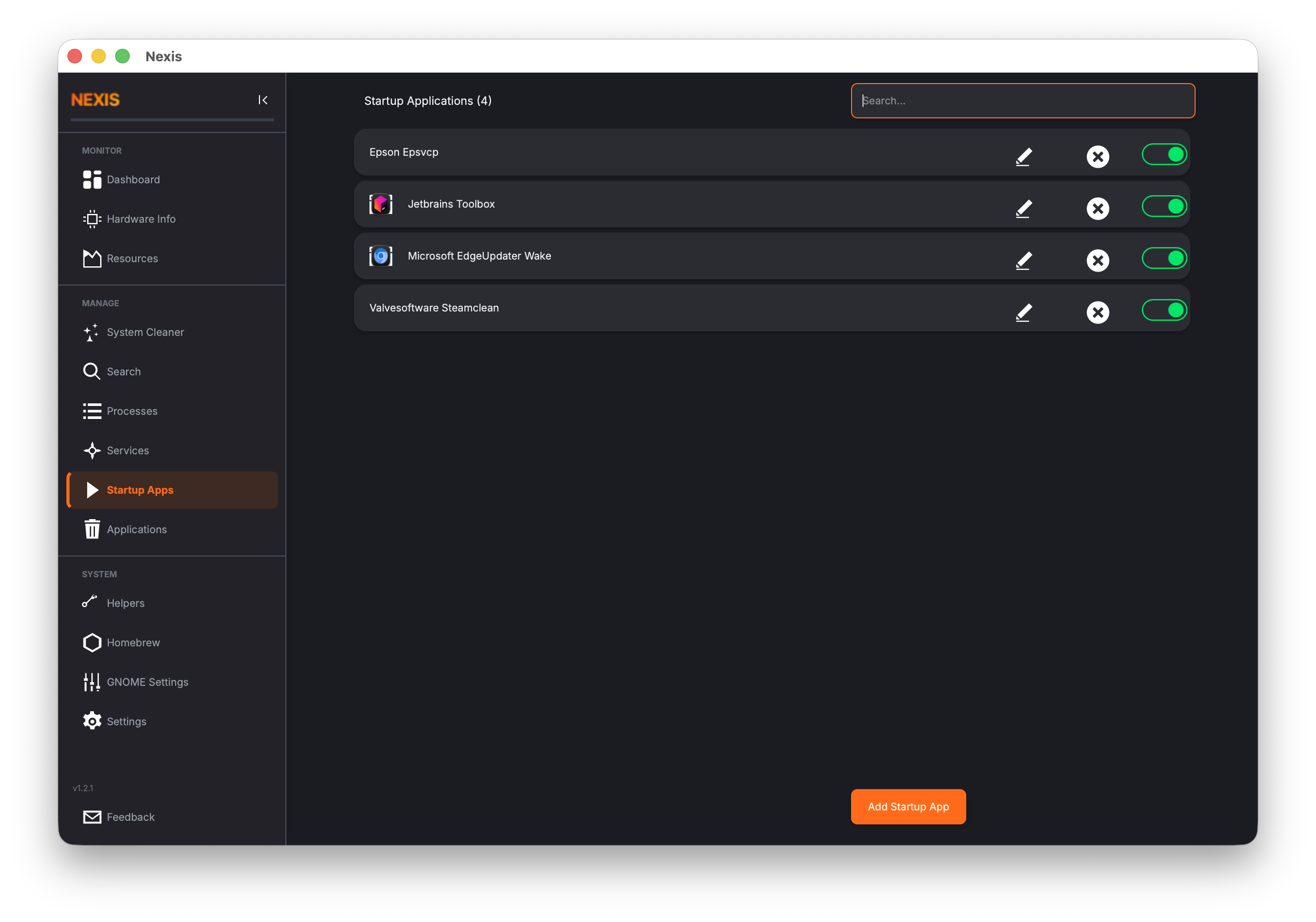
The Startup Apps page lets you control which programs run automatically every time you log in. Disabling unnecessary startup items is one of the easiest ways to speed up your login time and reduce background resource usage.
Why Manage Startup Apps?
Every application that starts at login adds to the time between entering your password and having a usable desktop. Some startup items are essential (your display manager, audio server, network manager), but many are optional — chat clients, cloud sync tools, update checkers, and utility apps. Reviewing this list periodically keeps your login snappy and your background resource usage low.
Viewing Your Startup Apps
When you open this page, Nexis scans your autostart entries and displays them in a list. Each entry shows:
- The app icon (pulled from your system’s icon theme)
- The name of the application
- A toggle switch to enable or disable it
Disabled entries remain in the list but are grayed out. They will not run at login until you re-enable them.
Searching
Use the search bar at the top to filter the list by name. This is especially helpful if you have many startup entries and need to find a specific one quickly.
Enabling and Disabling Entries
Click the toggle switch next to any entry to enable or disable it. The change takes effect on your next login — there is no need to save or confirm.
- Enabled — The application will launch automatically at login.
- Disabled — The application’s autostart file is preserved but deactivated, so it will not run.
Adding a New Startup Entry
Click the Add button to create a new autostart entry. A dialog will ask for:
| Field | Description |
|---|---|
| Name | A human-readable label for the entry |
| Command | The full command to execute (e.g., /usr/bin/slack) |
| Comment | An optional description of what the entry does |
| Delay | Number of seconds to wait after login before launching (useful to stagger resource-heavy apps) |
Linux: You can also set additional fields like GenericName and Icon, which follow the
.desktopfile specification.
After filling in the fields, click Save. The new entry appears in the list immediately.
Editing an Existing Entry
Select an entry from the list and click the Edit button to modify its name, command, comment, or delay. This is useful if an app changed its install path or you want to adjust its startup delay.
Deleting an Entry
Select an entry and click the Delete button to remove it permanently. This deletes the underlying autostart file from disk. If you are not sure you want to remove it, consider disabling it instead — that way you can re-enable it later without recreating it.
How It Works Behind the Scenes
Nexis reads and writes standard autostart files for each platform:
Linux: Autostart entries are
.desktopfiles stored in~/.config/autostart/. Nexis reads, creates, and modifies these files directly. App icons are resolved usingQIcon::fromTheme()based on theIcon=field in the.desktopfile.
macOS: Autostart entries are
.plistfiles in~/Library/LaunchAgents/. Nexis automatically filters out Apple system agents (com.apple.*) so you only see entries you can safely manage. App icons are resolved from application bundles.
Tips for Managing Startup Apps
Tip: If your login feels slow, try disabling all non-essential startup apps and re-enabling them one at a time. This helps you identify which ones are consuming the most resources at boot.
Tip: Use the Delay field to stagger your startup apps. For example, set your chat client to a 10-second delay and your cloud sync to 20 seconds. This prevents everything from competing for disk and CPU at the same moment.
Tip: If you disable an entry and later cannot remember what it was for, select it and click Edit to read its command and comment fields. This often reveals the application it belongs to.
What’s Next
Learn how to free up disk space by scanning for junk files in the System Cleaner guide.