Getting Started
Nexis is a system optimizer and monitoring tool for Linux and macOS. It gives you real-time insight into your hardware, helps you clean up junk files, manage startup apps and services, and much more — all from a single, polished interface.
This guide walks you through installation and introduces the main parts of the app so you can find your way around quickly.
Installation
Linux
Debian / Ubuntu (.deb)
Download the latest .deb package from the Releases page and install it:
sudo dpkg -i nexis_*.deb
sudo apt-get install -f   # resolve any missing dependencies
AppImage (any distro)
Download the .AppImage file, make it executable, and run:
chmod +x Nexis-*.AppImage
./Nexis-*.AppImage
Tip: Move the AppImage to
~/Applications/or/opt/so it has a permanent home. Most desktop environments let you right-click and “Allow executing as program” instead of using the terminal.
macOS
Download the .dmg file from the Releases page. Open it and drag Nexis into your Applications folder. On first launch, macOS may ask you to confirm you want to open an app from an identified developer.
macOS: Nexis runs natively on both Intel and Apple Silicon Macs. No Rosetta translation is needed.
Building from Source
If you prefer to compile Nexis yourself, make sure you have Qt 6, CMake 3.16+, and a C++17-capable compiler installed.
git clone https://github.com/nicholasng-7642/Nexis.git
cd Nexis
cmake -B build -DCMAKE_BUILD_TYPE=Release
cmake --build build -j$(nproc)
macOS: Point CMake at your Qt installation with
-DCMAKE_PREFIX_PATH=$(brew --prefix qt@6)and replacenprocwithsysctl -n hw.ncpu.
The compiled binary will be in the build/ directory. Run it directly or install it with cmake --install build.
First Launch
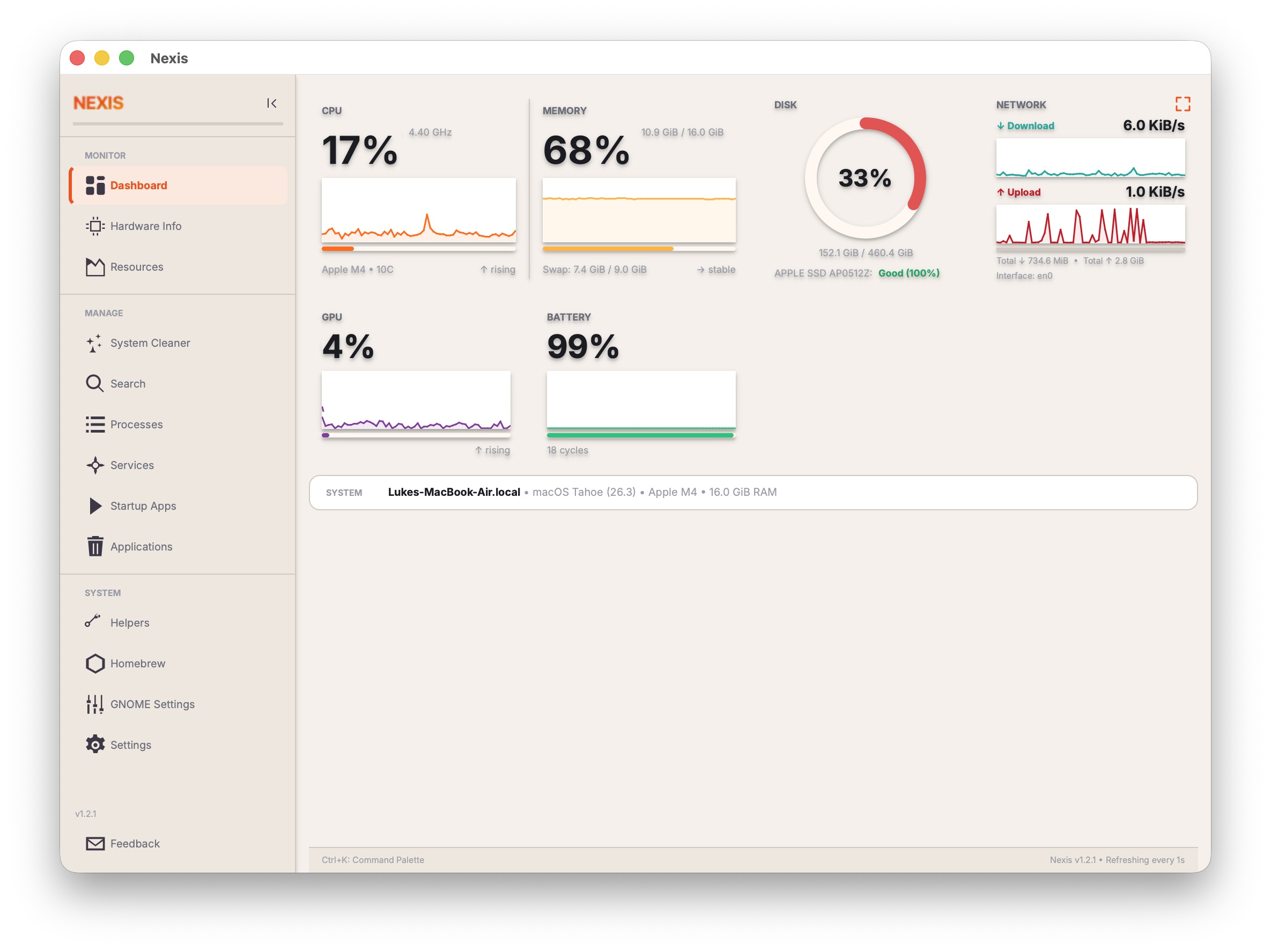
When Nexis opens for the first time, you land on the Dashboard — a live overview of your CPU, memory, disk, network, and more. Everything updates in real time so you can see your system’s health at a glance.
The Sidebar
The left-hand sidebar is your main navigation. It is organized into three groups that match the type of task you want to do:
MONITOR
- Dashboard — Real-time gauges and sparklines for CPU, memory, disk, network, GPU, temperature, and battery.
- Hardware Info — A detailed inventory of your hardware components.
- Resources — Historical charts showing the last 60 seconds of system activity.
MANAGE
- Startup Apps — Control which apps launch at login.
- System Cleaner — Scan for and remove junk files.
- Disk Tools — Find large/old files and detect duplicates to reclaim disk space.
- Search — Find files across your filesystem by name, size, date, and more.
- Services — Start, stop, and configure system daemons.
- Processes — View and end running processes.
- Uninstaller — Remove installed applications and packages.
SYSTEM
- Helpers — Utility tools such as the Hosts File Manager and DNS cache flushing.
- APT Repositories (Linux) / Homebrew (macOS) — Manage package sources.
- Docker — Manage Docker images, containers, and volumes (shown only when Docker is installed).
- System Logs — Browse and filter system log entries with severity color-coding.
- GNOME Settings (Linux/GNOME) — Tweak desktop appearance, mouse, and window behavior.
- Settings — Configure Nexis itself (theme, language, alerts, scheduled cleaning, and more).
Tip: Pages that do not apply to your platform are hidden automatically. You will never see a grayed-out button for something your OS does not support.
Collapsible Sidebar
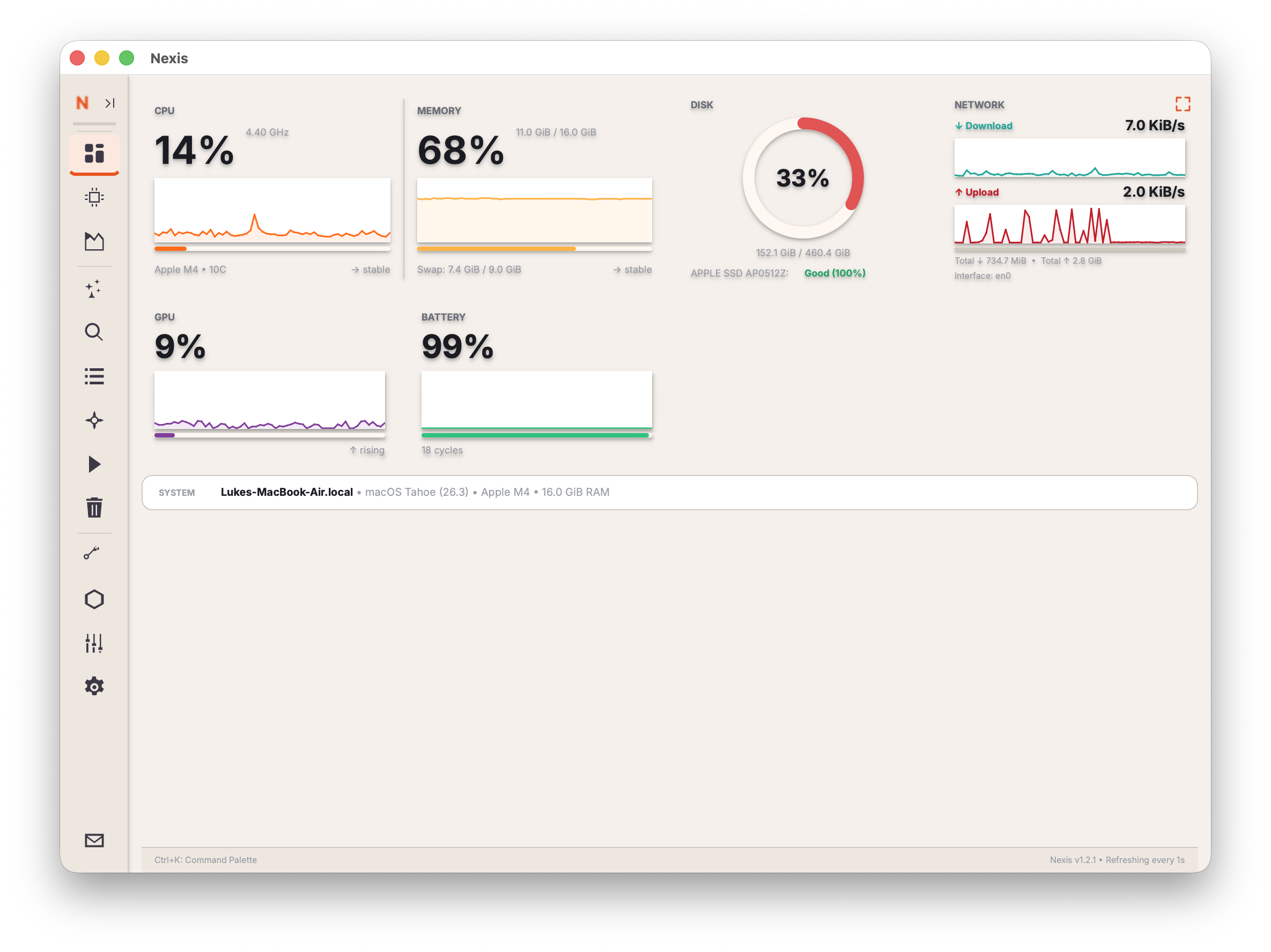
Press Ctrl+B (or click the collapse button at the top of the sidebar) to shrink the sidebar into a narrow icon rail. This gives more room to the main content area while still letting you switch pages with a single click. Press Ctrl+B again to expand it.
Collapsible Section Groups
Each section header (MONITOR, MANAGE, SYSTEM) is clickable. Click a section header to collapse its group, hiding the page buttons underneath. Click again to expand. A small chevron icon indicates whether the section is expanded or collapsed.
This is useful when you only work with a subset of pages — collapse the sections you don’t use to reduce visual clutter. Nexis remembers which sections are collapsed across sessions.
Command Palette
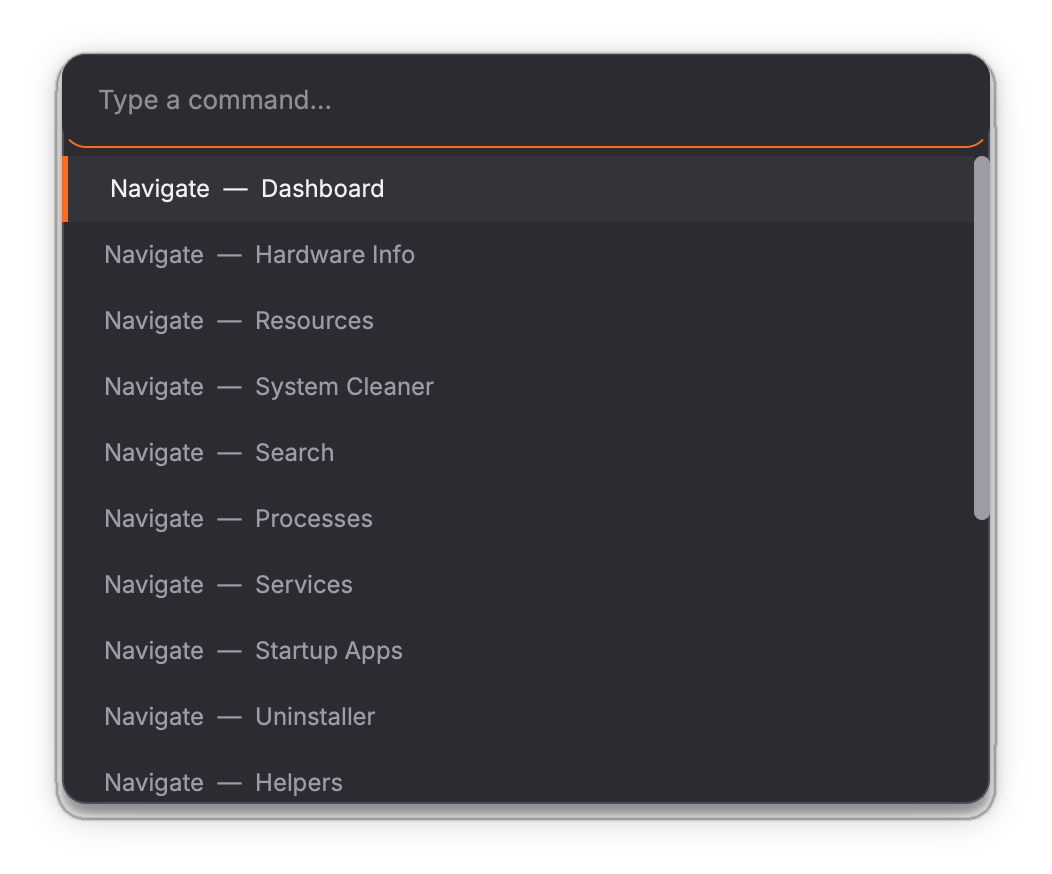
Press Ctrl+K to open the Command Palette, a fuzzy-search popup that lets you jump to any page or run common actions (like toggling kiosk mode or starting a clean) without touching the sidebar. Just start typing and select the result you want.
System Tray Icon
Nexis places an icon in your system tray (notification area). Right-click it to access quick navigation to any page, toggle kiosk mode, or quit the app. If you close the main window, Nexis keeps running in the tray so it can continue sending you threshold alerts and running scheduled cleans.
What’s Next
Now that you know your way around, head to the Dashboard guide to learn about every tile and feature on the main monitoring screen.