APT / Homebrew
This page adapts to your platform. On Linux systems with APT, it becomes a repository manager where you can add, edit, enable, and disable package sources. On macOS, it becomes a Homebrew package manager for browsing, installing, and uninstalling packages. The page only appears if the relevant package manager is detected on your system.
Available Updates
At the top of the page, an Available Updates section appears whenever your system has pending package updates. This works on both platforms — APT updates on Linux, Homebrew updates on macOS.
Sidebar Badge
When updates are available, a small badge appears on the APT / Homebrew sidebar button showing the number of pending updates. When the sidebar is collapsed, the badge shrinks to a colored dot so you still know updates are waiting. The badge disappears once there are no updates to install.
Updates Table
The updates section displays a table with three columns:
| Column | Description |
|---|---|
| Source | The repository or tap the update comes from |
| Package | The name of the package with a pending update |
| Version | The new version available |
Checking for Updates
Click the Check Now button to manually trigger an update check. The button shows “Checking…” while the query runs. Nexis also checks for updates automatically in the background on a periodic schedule.
Tray Notification
If you have update alerts enabled in Settings, Nexis sends a system tray notification the first time updates become available (i.e., the count goes from zero to one or more). This ensures you notice new updates even if you are not looking at the Nexis window.
Linux: APT Repository Manager
If Nexis detects apt-get on your system, this page lets you manage the package repositories your system uses to find and install software.
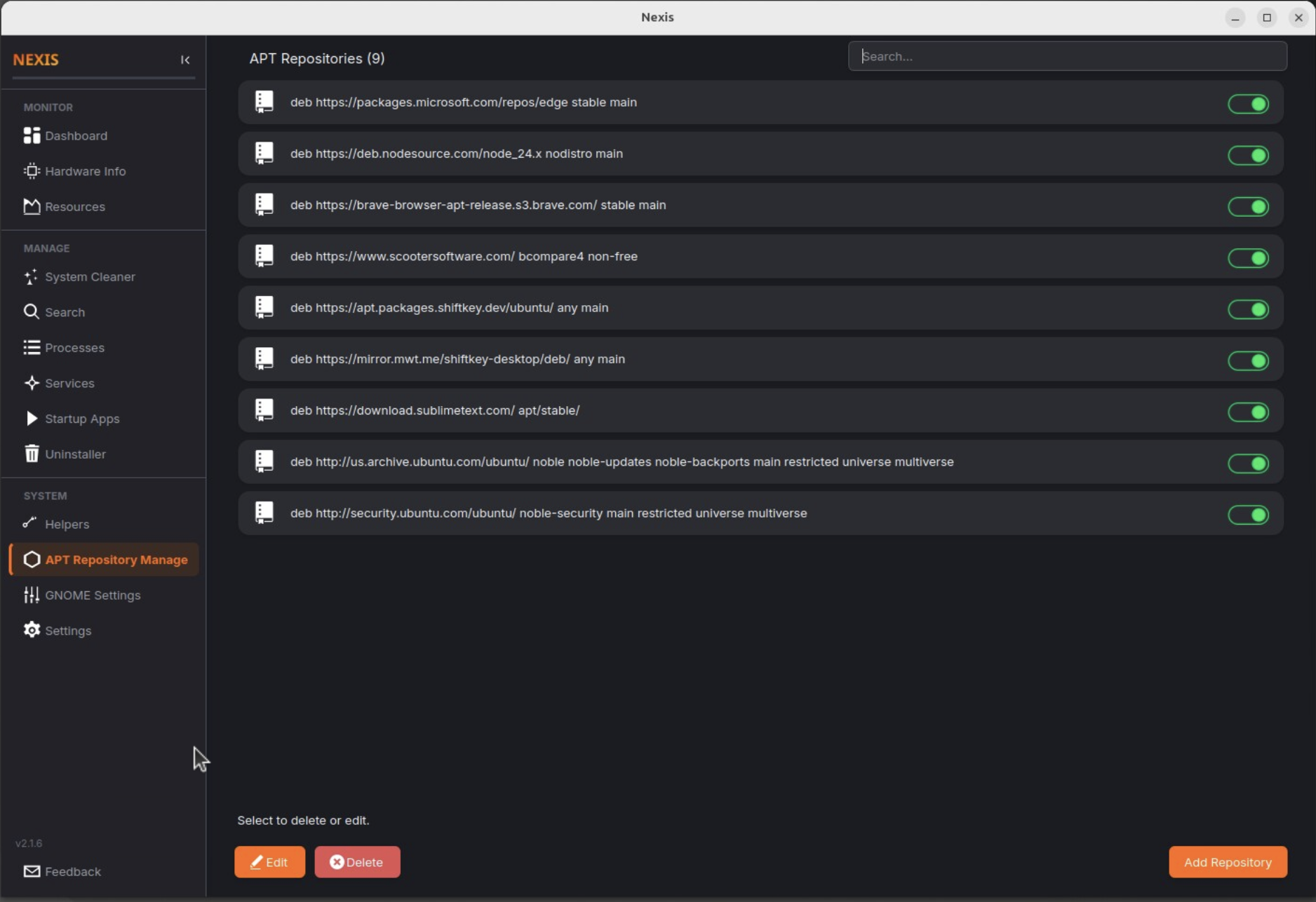
Understanding Repositories
APT repositories are the servers your system contacts when you run apt update or install a package. They are configured as files in /etc/apt/sources.list.d/. Each file describes one or more sources that provide packages.
Viewing Your Repositories
Nexis reads all repository files from /etc/apt/sources.list.d/ and displays them in a list. Both legacy and modern formats are supported:
- Legacy format (
.listfiles) — The traditional single-line format likedeb http://archive.ubuntu.com/ubuntu jammy main. - Modern deb822 format (
.sourcesfiles) — The newer structured format with separate fields for Types, URIs, Suites, Components, and Signed-By.
Tip: Use the search bar at the top to filter repositories by name or URL. This is especially helpful on systems with many PPAs or third-party sources.
Adding a Repository
Click Add to create a new repository entry. The structured editor provides fields for:
- Type —
deb(binary packages) ordeb-src(source packages) - URIs — The repository URL
- Suites — The distribution codename (e.g.,
jammy,bookworm) - Components — The repository sections (e.g.,
main,contrib,non-free) - Signed-By — The GPG key path for repository authentication
Editing a Repository
Select any repository and click Edit to modify its configuration. The same structured editor opens with the current values pre-filled. This is much easier than hand-editing configuration files, especially for the deb822 format.
Enabling and Disabling
You can disable a repository without deleting it. A disabled repository stays in its configuration file but is commented out, so APT ignores it during updates. This is useful when you want to temporarily stop using a PPA without losing its configuration. Click the toggle to switch between enabled and disabled states.
Deleting a Repository
Select a repository and click Delete to remove it entirely. This deletes the entry from the configuration file. Since repository changes require root access, you will be prompted for your administrator password.
Linux: All add, edit, and delete operations on APT repositories require
sudo. Nexis requests elevated permissions when you save changes.
APT-RPM Support
If you are running ALT Linux, PCLinuxOS, or Vine Linux, Nexis also supports the APT-RPM variant of repository management.
macOS: Homebrew Package Manager
On macOS, this page provides a graphical interface for managing packages installed through Homebrew.
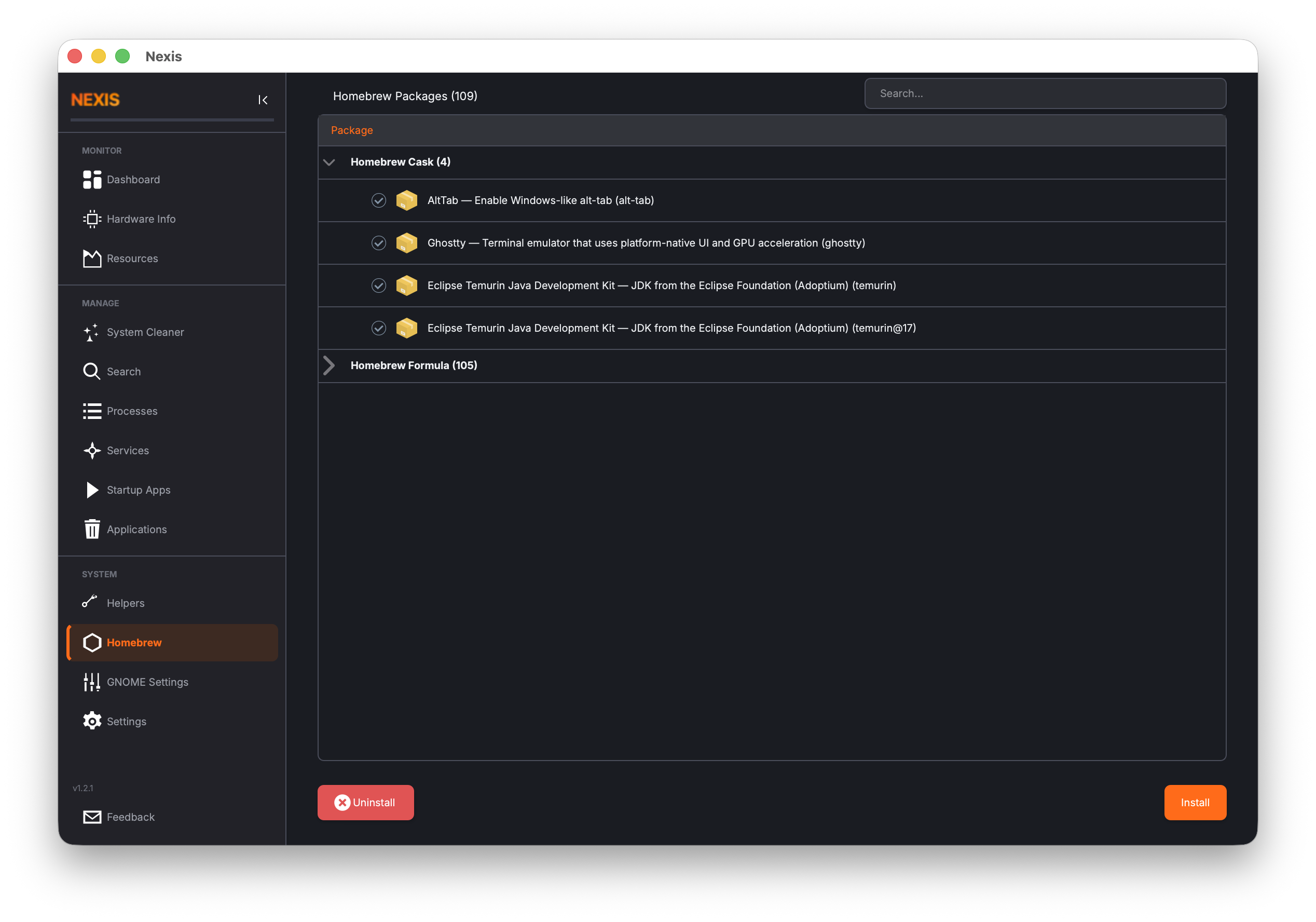
The Package Tree
Packages are displayed in a tree view with two top-level groups:
| Group | What It Contains |
|---|---|
| Formula | Command-line tools and libraries (e.g., git, wget, ffmpeg) |
| Cask | GUI applications (e.g., firefox, visual-studio-code, iterm2) |
The list loads in the background. A progress indicator appears while Nexis queries Homebrew for your installed packages.
Searching for Packages
Type in the search bar to filter the tree by package name. Matching sections expand automatically so you can see results immediately without manually opening each group.
Installing a Package
Click the Install button and type the name of the package you want. Nexis runs brew install (or brew install --cask for GUI applications) in the background and refreshes the list when complete.
Uninstalling Packages
Check the boxes next to the packages you want to remove, then click Uninstall. You can select multiple packages across both Formula and Cask groups for a batch uninstall operation. Nexis runs brew uninstall for each selected package.
Tip: If you are not sure which packages you have installed, use the search bar to check before installing something new. Homebrew will warn about duplicates, but checking first saves time.
What’s Next
If you use Docker, the next page explains how to manage containers, images, and volumes from within Nexis. See Docker.