Uninstaller
The Uninstaller page lets you remove applications and packages from your system through a visual interface. Instead of remembering the right terminal command for each package manager, you can browse your installed software in a searchable tree, select what you want to remove, and uninstall it with a click.
macOS: This page is labeled Applications in the sidebar to match the macOS convention.
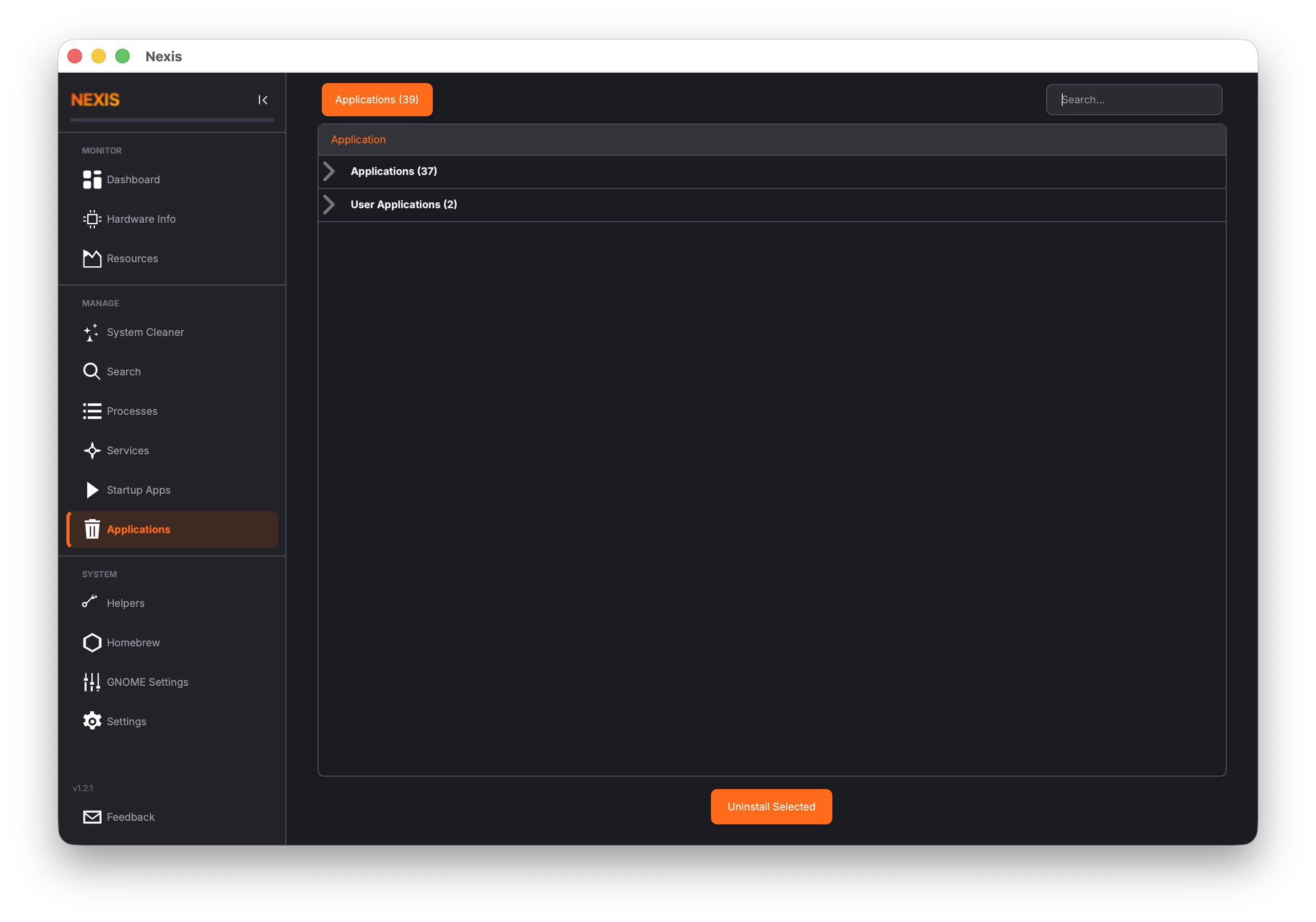
The Package Tree
Installed packages are displayed in a tree view, grouped by type. The grouping depends on your platform:
macOS Groups
| Group | Contents |
|---|---|
| Formula | Command-line tools and libraries installed via Homebrew |
| Cask | GUI applications installed via Homebrew Cask |
| Applications | Native .app bundles from your Applications folder |
Linux Groups
Grouping depends on your package manager. For example, on Debian/Ubuntu, you may see packages organized by repository (installed, universe, etc.).
Tip: The package list loads in the background. A progress indicator appears while Nexis queries your package managers. On systems with many packages, this may take a few seconds.
Searching
Type in the search bar to filter the tree by package name. As you type, matching sections automatically expand so you can see the results without manually opening each group. This is the fastest way to find a specific package when you know its name.
Selecting Packages
Each package has a checkbox next to its name. You can select packages in several ways:
- Click individual checkboxes to pick specific packages
- Click a group checkbox to select all packages in that group
- Mix and match — check some individual packages and some entire groups
The multi-select system makes batch uninstalls easy. If you are cleaning up after a project, you can check off several development tools at once rather than removing them one at a time.
Uninstalling
Once you have selected the packages you want to remove, click the Uninstall button.
Dry-Run Confirmation
Before anything is actually removed, Nexis shows you a confirmation dialog summarizing what will happen. On supported package managers (like APT), this includes a list of dependencies that would also be removed. Review this list carefully — removing a shared library or dependency could affect other installed software.
The Purge Option
Linux: A Purge checkbox is available that removes not just the package itself but also its configuration files. This is equivalent to
apt-get purgeand gives you a truly clean removal. Use this when you want to completely reset a package as if it were never installed.
macOS: The purge option is not available. Homebrew packages are removed cleanly by default, and
.appbundles are moved to the Trash.
How Removal Works
Behind the scenes, Nexis calls the appropriate package manager for each selected package:
Linux: Depending on your distribution, Nexis uses
apt-get remove(orpurge),dnf remove,pacman -R, orsnap remove. Administrator privileges are requested as needed.
macOS: Homebrew packages (both Formula and Cask) are removed via
brew uninstall. Native.appbundles are moved to the Trash using Finder integration, so you can recover them if you change your mind.
Tips for Safe Uninstalling
Tip: Always review the dry-run confirmation before proceeding. Pay special attention to the list of dependencies that will also be removed. If you see a package you still need in that list, cancel the operation and remove packages individually to avoid side effects.
Tip: On macOS,
.appbundles go to the Trash rather than being deleted permanently. Check your Trash before emptying it if you want a chance to restore something.
Tip: If you are unsure whether you still need a package, try disabling or removing it and then testing your workflow for a few days before cleaning up completely.
What’s Next
The remaining pages of the guide cover Resources, Helpers, package repository management, Docker, GNOME Settings, and application Settings. Continue exploring the guide to learn about every feature Nexis has to offer.